
Piso WiFi Login Admin & Pause Time Guide (2026)

Piso wifi is a popular network in the Philippines that allows users to buy internet sessions for a limited time through vouchers or by inserting coins into a vending machine. Piso wifi is available in public places. Many users use this WiFi because it provides reliable internet service and allows users to access the pause time feature, where they can stop their time and save their remaining data for later while they’re away from their device. This feature is especially helpful if you need to leave for a while or don’t want to waste your session minutes.
In this guide, you’ll learn what Piso WiFi Pause Time is, how it works, how to use it through the 10.0.0.1 portal, its key benefits, common issues you may face, and simple tips to make the most of this feature.
What is Piso WiFi?
Piso WIFI is a coin-based vending machine widely used in the Philippines. These machines are usually available in public places such as small markets, hostels, cafes, and waiting areas, where a person can pay a small fee or enter a voucher code to get wifi for a limited time. This way is popular and budget-friendly. Most Piso WiFi systems are managed through the 10.0.0.1 admin portal, where the network owner can log in, manage connected devices, create vouchers, change passwords, and enable features such as pause time. This feature allows users to stop their remaining data time and continue using it later.
What is 10.0.0.1?
10.0.0.1 is the default IP address used to access the Piso Wi-Fi admin portal. Since it is a private IP, it only works when your devices are connected to Piso Wi-Fi.

It allows the admin
- Change password
- Manage time and price.
- Monitor connected devices
- Create vouchers
- Control pause-time feature
For users
- Monitor connected devices
- Check time limit
- Use the pause feature.
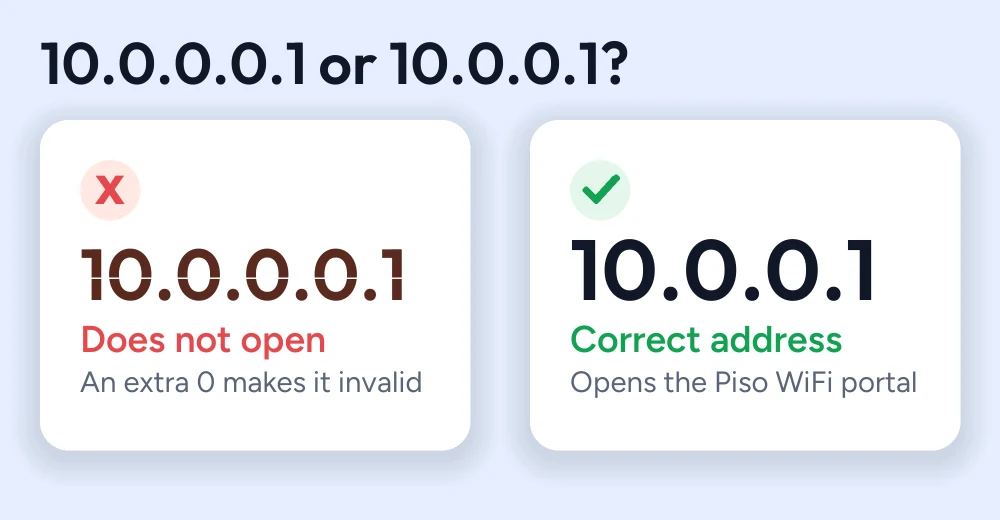
What About the 10.0.0.0.1 Login Admin?
Many users mistakenly type 10.0.0.0.1 when trying to access the Piso Wi-Fi admin page; however, 10.0.0.0.1 is not valid for the admin page. Simply remove the extra 0; the correct IP address is 10.0.0.1, which instantly opens the admin login portal where you can easily change passwords and manage connected devices, so always make sure to enter the correct IP.
How to Find Your IP Address to Access 10.0.0.1
Before trying to access the 10.0.0.1 IP address, you should check and confirm that this IP is your router’s default gateway. You can easily check and find this information in your device’s network settings.
- Open settings
- Go to WIFI or your connected network.
- Tap Gateway or router address.
- If the displayed ID is 10.0.0.1, your network uses this IP as the default gateway.
How to Access 10.0.0.1
Accessing 10.0.0.1 is simple; however, this IP is private, so before accessing, make sure your device is connected to the Piso Wi-Fi network. Here are some easy steps
- Connect your phone, tablet, or PC to the Piso Wi-Fi network.
- Open a web browser (Safari, Chrome, or Edge)
- Type 10.0.0.1 in the address bar
- An admin portal appears on your screen.
Piso WiFi 10.0.0.1 Admin Login
The 10.0.0.1 admin portal page allows Piso WiFi owners to manage connected devices, create vouchers, change passwords, and adjust other important settings.
- Connect your phone, tablet, or PC to the Piso Wi-Fi network.
- Open a web browser (Safari, Chrome, or Edge)
- Type 10.0.0.1 in the address bar
- An admin portal appears on your screen.
- Enter the admin username and password.
- Click Login to access the dashboard, where you can manage the admin portal.
Piso WiFi Pause Time – How to Use
The pause time feature allows users to temporarily stop their WiFi internet session, and without losing time, later they can resume the pause time and enjoy the remaining internet.

How to Enable Pause Time
- Connect your phone, tablet, or PC to the Piso Wi-Fi network.
- Open a web browser (Safari, Chrome, or Edge)
- Type 10.0.0.1 in the address bar
- Click on the pause time feature available on the portal.
- Wait for the confirmation message that your session has been paused.
- To continue browsing, return to the same portal and click “resume” to use your remaining internet session.
10.0.0.1 Not Working?
- Make sure your device is connected to the PISO WiFi network.
- Double-check that the IP address is correct and doesn’t contain extra digits. 10.0.0.0.1 is incorrect; the valid IP is 10.0.0.1
- Always enter your IP address in the address bar.
- Clear the browser cache or refresh the page.
- Restart your router if the login page still doesn’t appear.
- Verify that 10.0.0.1 is the correct default gateway for your router, as many other devices use a different local IP
How to Change Your Piso WiFi Admin Password
You can simply change your admin portal password by following these steps.
- Open your admin portal.
- Enter your username and password.
- Go to the account administrator or settings section.
- Enter your current password, and type a new strong password.
- Confirm the new password by entering it again.
- Click “save” or “update password”
- Log out of your admin portal and sign in again using your new password.
Conclusion
Managing your Piso WiFi network becomes easy once you understand how to access the 10.0.0.1 IP admin portal. Many users mistakenly search for the incorrect IP 10.0.0.0.1. Always make sure to enter the right IP, 10.0.0.1; it gives users admin portal access, where users can easily change passwords, create vouchers, manage connected devices, and use features like pausing time. Following the right steps can make your Piso Wi-Fi network experience smooth and hassle-free.
FAQs
How to pause Piso Wi-Fi?
To pause your Piso Wi-Fi session, open the portal at 10.0.0.1 and tap the Pause button; it will stop your internet, and you can later use your remaining internet.
How does Piso Wi-Fi work?
Piso WiFi works by allowing users to pay a small number of coins or a voucher for internet access. The vending machine is available in public places. You can use the internet for a limited time period.
How many minutes do I get when I buy Piso WiFi?
The number of minutes depends on the pricing plan set by the Piso WiFi owner; for example, one network may offer 30 minutes for 1 peso.
How to connect to Piso Wi-Fi?
Turn on WiFi on your device and connect to the Piso Wi-Fi network. Open your browser, go to 10.0.0.1 and insert coins or enter a voucher code to start your session.
How do I change the Piso Wi-Fi name?
Log in to the 10.0.0.1 admin dashboard, open the wireless or WiFi settings, update the SSID (WiFi name), save the changes, and reconnect your device.
How to add time to Piso WiFi?
To add extra minutes, purchase another voucher through the Piso WiFi portal. The extra time is usually added to your active session automatically.
More Piso WiFi guides
- Piso WiFi pause time guide
- Piso WiFi login issues and fixes
- Piso WiFi voucher guide
- LPB Piso WiFi login guide
- Piso WiFi pause time app guide
- Piso WiFi IP address errors guide
- TP-Link router login guide
- Tenda router login guide
- Xfinity router login guide
Looking for your router brand? See the router login guides or go back to the Piso WiFi guides hub.


