Tenda Router Login and Password Guide (2026)

The Tenda router is a popular wireless networking device that helps you connect your devices to the internet, such as laptops, PCs, mobiles, and other devices. You can also manage the Tenda router’s default settings by logging in to its admin portal, where you can easily customize advanced features such as changing the WiFi name and password and updating security settings. The Tenda router provides a fast and strong internet connection.
In this guide, you’ll understand how to set up your Tenda router, the default IP and username, common troubleshooting solutions, and how to change your router settings.
What is a Tenda Router?
A Tenda router is a networking device that connects your home office devices to the internet and allows multiple devices to share the same internet connection using default IPs and passwords. It is known for its affordable price and strong network coverage. Many users prefer the Tenda router because it provides many advanced features such as dual-band Wi-Fi, parental control, guest network bandwidth management, and advanced security settings.
Users can log in to the Tenda router admin portal using the 192.168.0.1 default IP to change their network settings, such as Wi-Fi name, passwords, and username; update security settings; and manage connected devices to the network. Whether you are setting up a new internet connection or managing networks, this router provides strong security and an ideal internet connection for home and internet users.
Default Tenda Router IP Address, Username & Password
Before logging in to the Tenda admin portal, you need to enter the default IP, username, and password. Here are the most common Tenda users’ default IP, username, and password
| Default login IP | Default username | Default passwords |
|---|---|---|
| 192.168.0.1 | admin | none/admin |
| 192.168.1.1 | admin | none/admin |
| 192.168.2.1 | admin | none/admin |
Tenda Wireless Router Login Setup
First, connect your home or office devices to the internet network using a LAN or Ethernet cable. Make sure your device is connected to the router network. If your device is not connected to the router network, it will not be able to access the admin login panel.

Open a Web Browser
Open any web browser, such as Google Chrome, Safari, or Edge. Every router has its own default IP that supports its login admin portal. If you want to access the Tenda router admin portal, search its default IP 192.168.0.1 or 192.168.1.1 in the address bar. If you forget its IP, you can simply search tendawifi.com; it will land you on its login page.
Enter the Username and password.
On the login page, enter your default credentials if you recently changed your login credentials using these details. After entering the correct details, tap on login; you’ll be taken to the Tenda router dashboard, where you can manage its settings.
If you forget your credentials or the default password or username is incorrect, simply reset the router; it will give you access to log in using the default username and password. After logging in, you can change the Tenda router settings on its dashboard.
Configure Internet Settings
If you’re setting up your router for the first time, follow these steps
- Go to the WAN or internet settings
- Select the internet connection type provided by the ISP
- Enter the required username and password if your internet provider uses PPPoE; if not, contact your router provider
- Save the settings and wait for the router to connect
How to Change the Settings of Your Tenda Router
After the default login, you can easily change your router settings, such as WiFi name, username, and passwords, and update security settings
Change the Wi-Fi Name (SSID)
- Open the wireless settings
- Locate the wifi name SSID
- Enter a new network
- Save settings
Change the Wi-Fi password.
- Go to wireless or Wi-Fi settings
- Enter a new strong password
- Save the settings
Update the Router Login Password
- Open the login dashboard and select “account settings.”
- Enter current password
- Enter new passwords
- Save settings and log in again using your new password
Understanding Tenda Router Lights and Their Meanings
The LED lights indicator on your Tenda router provides important details regarding your network. Each light holds different meaning, whether your router needs attention or it’s just a network problem. Understanding the router lights is important
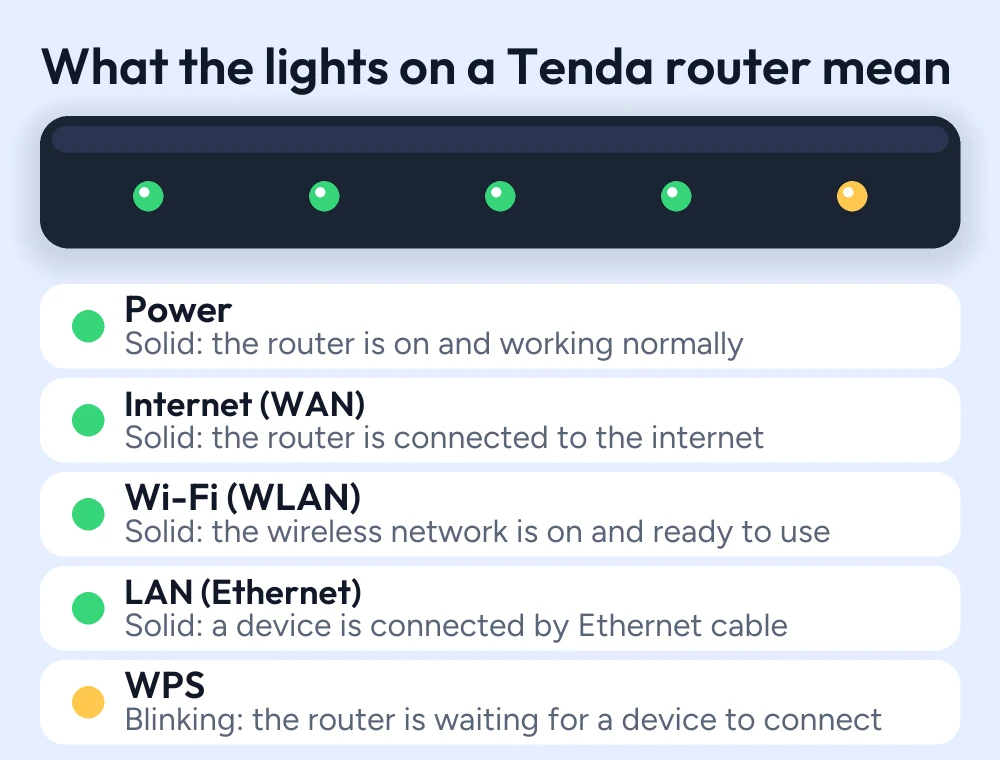
| Router Light | Light Status | Meaning |
|---|---|---|
| Power | Solid | The router is powered on and working normally. |
| Blinking | The router is starting up, rebooting, or updating its firmware. | |
| Off | The router is not receiving power. Check the power adapter and outlet. | |
| Internet (WAN) | Solid | The router is connected to the internet. |
| Blinking | Internet data is being transmitted or received. | |
| Off | No internet connection is detected. Check the modem or ISP connection. | |
| Wi-Fi (WLAN) | Solid | The wireless network is enabled and ready to use. |
| Blinking | Wi-Fi data is being transmitted between devices. | |
| Off | The Wi-Fi network is disabled. | |
| LAN (Ethernet) | Solid | A device is connected through an Ethernet cable. |
| Blinking | Data is being transferred over the wired connection. | |
| Off | No device is connected to the LAN port. | |
| WPS | Solid | A WPS connection has been established successfully. |
| Blinking | The router is waiting for a device to connect via WPS. | |
| Off | WPS is disabled or not currently in use. |
Troubleshooting Tenda Router Login and Connection Issues
- Check the internet connection
- Clear browser cache
- Make sure your WAN cables are connected correctly
- Verify login credentials
- Enter the correct IP in the address bar
If your problem is still the same, simply resetting your router can help you to set the router settings.
Conclusion
The Tenda router is one of the most popular wireless networking devices because it provides an affordable and secure internet connection. It helps homes and offices connect multiple devices to one internet connection. By accessing the Tenda admin portal, you can easily customize the settings, such as changing the WiFi name, username, and passwords; updating security settings; and managing connected devices.
Tenda provides a default IP, 192.168.0.1. You can enter it in the browser address bar and access the login panel. If you encounter login or troubleshooting issues, this guide will help you to solve them instantly.
FAQs
How to Reboot a Tenda Router?
To reboot your Tenda router, unplug your cable for 15 to 30 seconds, then plug it back in; it will restore your internet connection.
How to Connect a Printer to a Tenda Router?
Using an Ethernet cable, you can connect your printer to the Tenda network if supported and then add the printer from your computer through the system printers setting.
How to Check Data Usage on a Tenda Router?
Log in to your Tenda admin portal using the default IP, then click on Bandwidth. Here you can manage connected devices and their usage.
More router login guides
- TP-Link router login guide
- D-Link router login guide
- Netgear router login guide
- ASUS router login guide
- 192.168.0.1 login guide
Running a coin WiFi vending machine? Read the Piso WiFi 10.0.0.1 admin login guide and the Piso WiFi pause time guide, or go back to the Piso WiFi and router login guides hub.


