
TP-Link Router Login Admin Guide

TP-Link routers are known for their fast and reliable performance that provides secure internet service at an affordable price. Many users prefer this router because it provides secure wireless networking to their home and office devices and gives overall WiFi control to the user. You can customize router settings by accessing its admin login panel using its default IP and credentials.
In this guide, you’ll understand the entire process and learn how to access the TP Link admin panel, manage your network settings, and troubleshoot common router problems quickly.
What Is a TP-Link Router
A TP-Link router is a wireless networking device that connects your home and office Wi-Fi to multiple devices to share the same connection. It creates a secure wireless connection that allows users to enjoy gaming, online classes, and browsing. A TP-Link router is known for its reliable service that provides advanced features. Whether you want to change the Wi-Fi name, username, or password; manage connected devices; configure networking settings; or update firmware, you can customize these settings by logging in to its admin panel using its default IP and credentials.
If you face login issues or forget your password, then reset your router. You can set your router to its factory settings and restore your router settings to their original state.
TP-Link router default IP, username, and password
| Default IP | Default username | Default password |
|---|---|---|
| 192.168.0.1 | admin | admin |
| 192.168.0.254 | admin | admin |
How to Log In to Your TP-Link Router
Before you can change your Wi-Fi settings or manage your network, ensure that your device is connected to the router via Wi-Fi or an Ethernet cable. If your device is not connected to the Wi-Fi network, you won’t be able to access the admin login page.
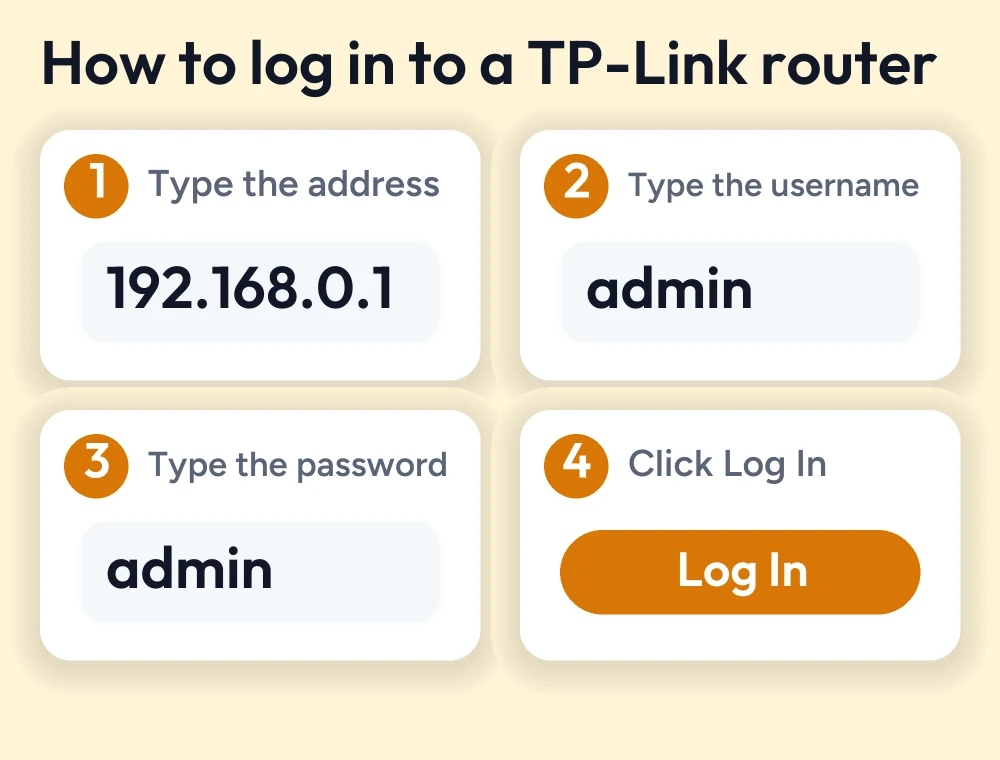
- Launch a web browser such as Edge, Google Chrome, or Safari
- Enter the router’s default IP in the address bar
- You’ll land on the login page
- Enter default credentials (correct username and password)
- Click on login, and you’ll be able to access the admin dashboard where you can customize router settings, manage devices, update firmware, and configure network security settings.
Sometimes users face login issues, or some users may have forgotten their admin login password. Then the last option to recover the login page is to reset your router. Press and hold the reset button on your router for 15 seconds until the LED lights start blinking, then wait for a few minutes. These settings can erase all your custom Wi-Fi settings and set them to factory settings.

Troubleshooting TP-Link Router Login Issues
TP-Link Router Still Not Working? Try These Fixes
If the router is not working and keeps rebooting, then restart both your router and modem and update the firmware. Also ensure that all your network cables are plugged in securely; if the router is still not working, contact your ISP to confirm whether your internet service is active or not.
How to Protect Your TP-Link Wi-Fi Network
Many users face login issues or want to update their credentials. Keeping your TP-Link Wi-Fi network secure is easy; simply change the default admin password by clicking on the wireless option in the dashboard or enable WPA2 or WPA3 encryption for better wireless security.
Conclusion
TP-Link is one of the most famous networking device; it comes with different models and allows users to access an admin panel where they can easily control router Wi-Fi settings, such as managing connected devices, configuring network settings, changing the name, password, and username, and updating firmware by logging in to its panel using the default IP 192.168.0.1 and default credentials. If your credentials are not accepted, then resetting your router is the only choice to set your router to its original settings. If you recently bought a TP-Link router and want to know how to set up this router, then following this guide is very helpful for you.
FAQs
How Do I Log In to My TP-Link Router?
Connect your device to the TP-Link router, open your browser, enter the default IP 192.168.0.1, and then sign in using your administrator username and password to access the router.
What Should I Do If I Forget My TP-Link Router Password?
If you recently changed your password and have forgotten then the last option is to reset your router. Simply press and hold your router reset button for 15 seconds, then release when the LED lights start blinking; it will set your router to factory settings.
How Can I Change My TP-Link Wi-Fi Name and Password?
Log in to the router admin panel and go to wireless settings. From there, you can update your WiFi network name, SSID, and passwords.
More router login guides
- Tenda router login guide
- D-Link router login guide
- ASUS router login guide
- Netgear router login guide
- 192.168.0.1 login guide
Running a coin WiFi vending machine? Read the Piso WiFi 10.0.0.1 admin login guide and the Piso WiFi pause time guide, or go back to the Piso WiFi and router login guides hub.


