
Piso WiFi Login Issues and Fixes

Experiencing Piso WiFi login issues can be frustrating, especially when you’re in a hurry or want to access the admin panel. Many users face different issues while logging in to the Piso WiFi admin panel, such as the login page not opening, slow loading, wrong credentials, Piso WiFi pause time not working, no internet connection, or being unable to connect to the WiFi network. These issues are mainly caused by entering the wrong IP in the address bar, whether you’re a regular Piso user or Piso WiFi owner.
This guide covers every problem with fixes for users. After reading or understanding this guide, you’ll be able to fix these common Piso login issues.
What Causes Piso WiFi Login Issues?
We can say that Piso login issues can happen for several reasons. Users often face problems such as the Piso WiFi login page not opening or the 10.0.0.1 IP login being incorrect. These two are the most common issues, and their fixes are easy. These issues are mainly caused when the internet connection is weak or there is a browser cache problem; simply clear the browser cache and wait for a few minutes.
Common Piso WiFi Login Problems
Here are some of the most common Piso WiFi login issues that many users face that affect both owners and regular customers. Understanding these issues can help you to solve them easily.
Login Page Not Opening
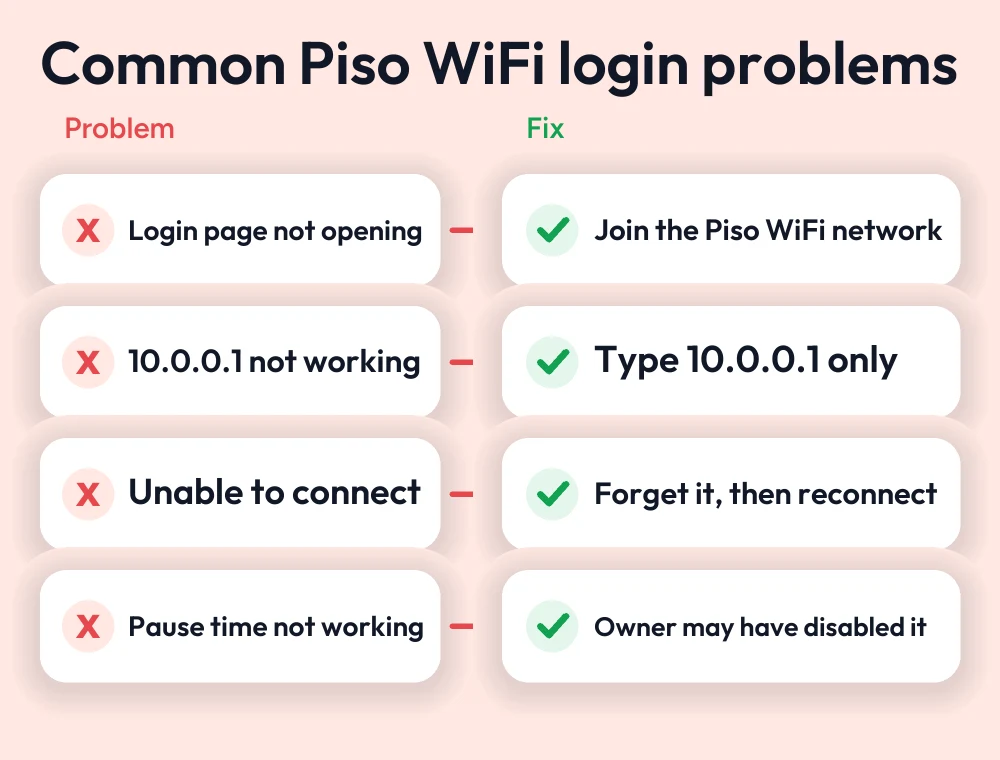
The most common Piso WiFi issue is when users enter the 10.0.0.1 IP in the web address browser and it shows the login page blank. When this happens, the user is unable to reach the admin panel, making it impossible to log in.
10.0.0.1 Not Working
Sometimes users enter the wrong IP, 10.0.0.0.1, in the address bar instead of the correct 10.0.0.1 IP. In the address bar, they add an extra 0, which makes it invalid.
Unable to Connect to Piso WiFi
In most cases, devices detect the WiFi network but cannot connect to Piso WiFi successfully; users may be stuck on the connecting screen.
No Internet After Login
Sometimes a user successfully logs in to the admin panel by entering the correct IP address but experiences Piso WiFi with no internet connection; it may happen because the server fails to load.
Pause Time Not Working
Many users reported Piso’s pause time feature not working issues; the pause time feature is sometimes unable to load or fails to respond, another problem for users.
How to Fix Piso WiFi Login Issues
If you’ve understood the Piso Wif login problems, then it will be useful for you to find its solution and fix these errors. Most login fixes are simple and can be resolved in a few minutes. Here are some login issue fixes.
Check Your WiFi Connection
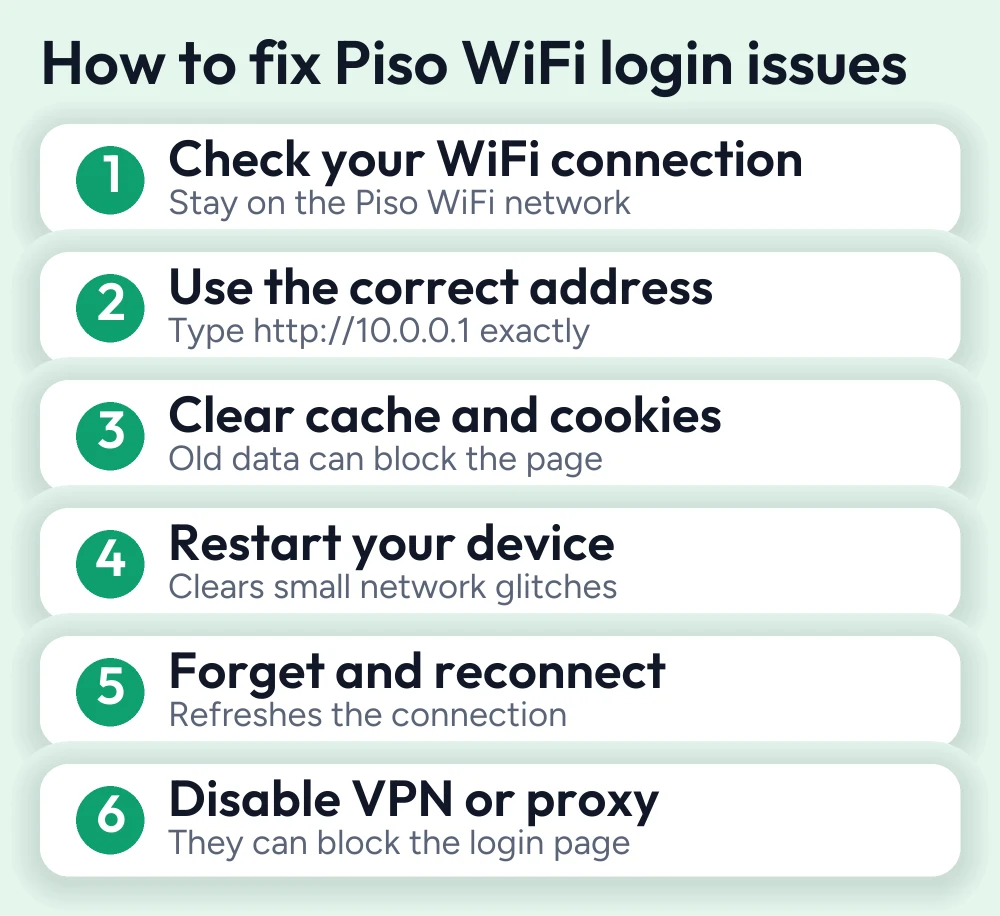
Make sure your device is connected to the Piso WiFi network; if your device is connected to another network, then you’ll not be able to access the login page or face login problems.
Use the Correct Login Address
Open your web browser and enter the correct login IP, http://10.0.0.1, exactly like this. It will prevent you from slow loading, and you’ll be able to access the admin panel in a few seconds.
Clear Browser Cache and Cookies
Before entering the login IP address, make sure to clear your browser; it may store outdated cache and cookies, and then they will interfere with making the login page accessible and the user face a slow internet connection that will cause slow loading.
Restart Your Device
A simple restart of your device can solve half of these login issues and can fix temporary software or network problems and boost your internet signal. After rebooting your device, reconnect your network and try logging in again.
Forget and Reconnect to the Network
If you frequently face connection problems and network signal problems, simply forget your network and reconnect to it again; this will boost the network signal and resolve connection issues.
Disable VPN or Proxy
If you’ve used VPN or proxy services, disable them while accessing your admin login pages; it will interrupt the connection and block access to the login page and give both users and owners a hard time accessing the admin page.
Restart the router.
If you’re the owner of a Piso WiFi network and your customer keeps reporting login issues, then restarting your router can resolve temporary login issues.
Contact the Piso WiFi administrator.
By following these fixes, if you’re still unable to solve the login issue, contact the Piso WiFi network administrator; they will assist you and help you to resolve the problem.
Tips to Avoid Piso WiFi Login Problems
Here are some tips to avoid Piso WiFi login problems. Follow these steps, and you’ll get a hassle-free, smooth experience
- Always connect your device to the correct Piso WiFi network
- In the web browser, enter the correct IP address 10.0.0.1. Many users make a mistake and type 10.0.0.0.1, the incorrect IP address
- Before accessing the admin login page, make sure to clear your browser cache
- Avoid using VPN proxy services while accessing the admin panel
- A weak signal can interrupt your browser; to get a strong wifi signal, stay close to the router
- Avoid attempting unnecessary logins to the admin panel
Conclusion
Piso WiFi login issues are common; many users face several login issues and want to solve them. Some users face the Piso WiFi page not working, the 10.0.0.1 IP not working, Piso pause time features being unavailable, or no internet after logging in. These issues are common and can be fixed in a few minutes. If you’re a Piso owner or regular customer facing these problems, then this guide is for you. By following this guide, you’ll be able to solve these minor Piso WiFi login issues within minutes.
FAQs
Why is my Piso WiFi login page not opening?
Your Piso WiFi login page may not open if you're not connected to the Piso WiFi network. Make sure to connect your device to the correct network.
Why can't I access 10.0.0.0.1?
10.0.0.0.1 is usually the incorrect IP address for most Piso WiFi login portals; the correct IP is 10.0.0.1.
How do I fix Piso WiFi login issues?
Check your wifi connection, use the correct IP address, disable VPN and proxy, or clear your browser cache. These simple fixes can solve login problems.
Why is the Pause Time feature not working?
Sometimes the pause time feature is unavailable due to the network owner, or your internet session has already expired. Reconnect to the portal or contact the PSO WiFi owner.
More Piso WiFi guides
- Piso WiFi 10.0.0.1 admin login guide
- Piso WiFi IP address errors guide
- Piso WiFi pause time guide
- LPB Piso WiFi login guide
Looking for your router brand? See the router login guides or go back to the Piso WiFi guides hub.


