192.168.1.1 – Login Admin Guide (2026)

192.168.1.1 is a private IP that is a gateway to your router’s admin panel. Whether you want to change the WiFi password or username, configure network settings, update firmware, or set up parental control, you’ll be able to make changes by logging in to the admin panel and entering this IP address, 192.168.1.1, in the address bar. The login process is simple and easy and takes only a few steps. In this guide, you’ll learn how to log in to the admin panel of routers that use the 192.168.1.1 IP as their default login admin settings and understand how to troubleshoot errors.
What Is 192.168.1.1?
192.168.1.1 is a private IP address that is used by many routers. In simple words, by entering the IP in the address bar, you’ll be able to log in to the admin panel where you have control over all the router settings. You can customize router settings such as changing the WiFi name (SSID), updating the password, setting parental control, updating firmware, configuring network settings, and resetting or restarting your router anytime easily.
Default 192.168.1.1 login credentials: username and password
| Default IP | Default username | Default password |
|---|---|---|
| 192.168.1.1 | admin | admin/depending on router type |
How to Log In to the 192.168.1.1 Admin Panel
Logging in to the admin panel is simple; before logging in, you need to connect your device to the router network through an Ethernet cable or using a Wi-Fi connection. If your device is not connected to the router network, then you’ll not be able to access the admin panel.
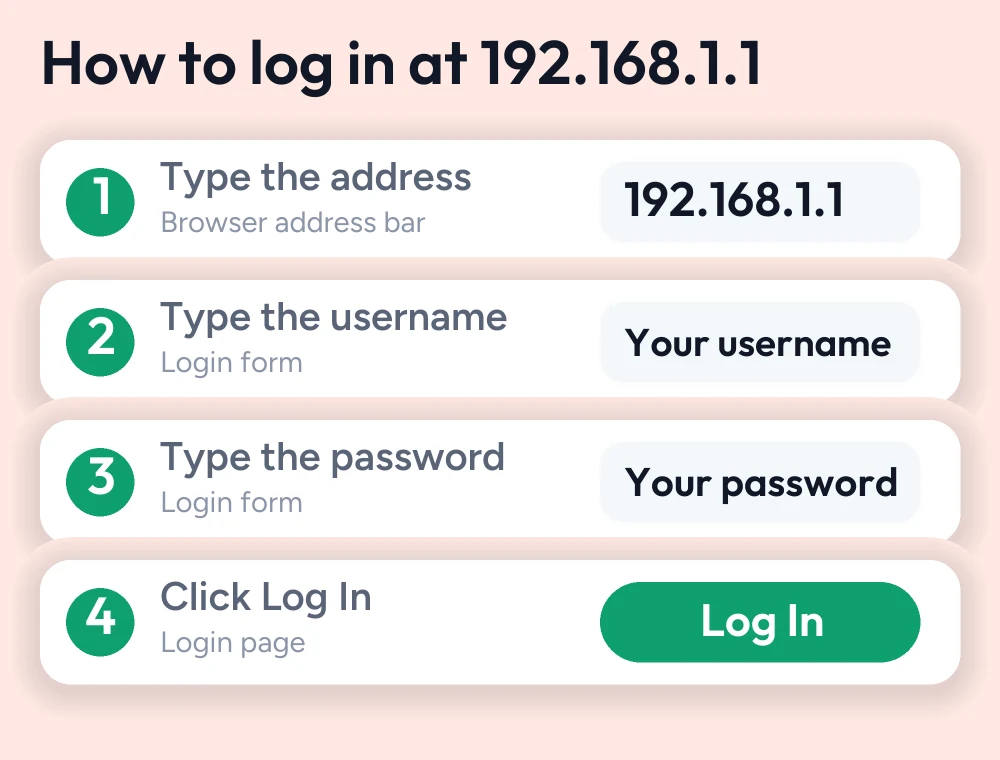
- Launch any web browser such as Edge, Safari, or Google Chrome
- Enter your router’s default IP, 192.168.1.1, in the address bar
- The login page appears on your screen. Enter the default login credentials
- Click Enter, and you’ll be able to access the admin panel where you can customize settings and manage Wi-Fi controls.
Brand-Specific Router Login Credentials
| Router brand | Default username | Default password |
|---|---|---|
| TP-Link | admin | admin |
| netgear | admin | password |
| linksys | admin | admin |
| D-link | admin | admin/blank |
| Asus | admin | admin |
| Belkin | admin | admin/blank |
| Cisco | admin | admin |
| Tenda | admin | admin |
| Arris | admin | admin |
| Huawei | admin | admin |
How to Reset Your Router Login Username and Password using 192.168.1.1 IP
After logging in to the admin panel, you’ll be able to make changes such as changing the Wi-Fi name, updating the password, creating a guest network, and managing connected devices.
Change admin password
Updating your router admin password is easy and quick; an updated password can help to secure your router admin panel efficiently.
- Log in to the admin panel using default credentials
- Go to administrative system settings in the dashboard
- In the password field, enter a new strong password
- Click on Save/Apply
- Then log in again using the new password.
Change the Wi-Fi name SSID and password
- Login to admin panel using IP 192.168.1.1 address
- Go to the Wi-Fi or wireless settings section in the dashboard
- Enter a new name in the SSID field
- Create a new password in the wireless key field
- Click on Save Changes
- Reconnect all your devices using the new password and name
How to Reset a Router to its Factory Settings
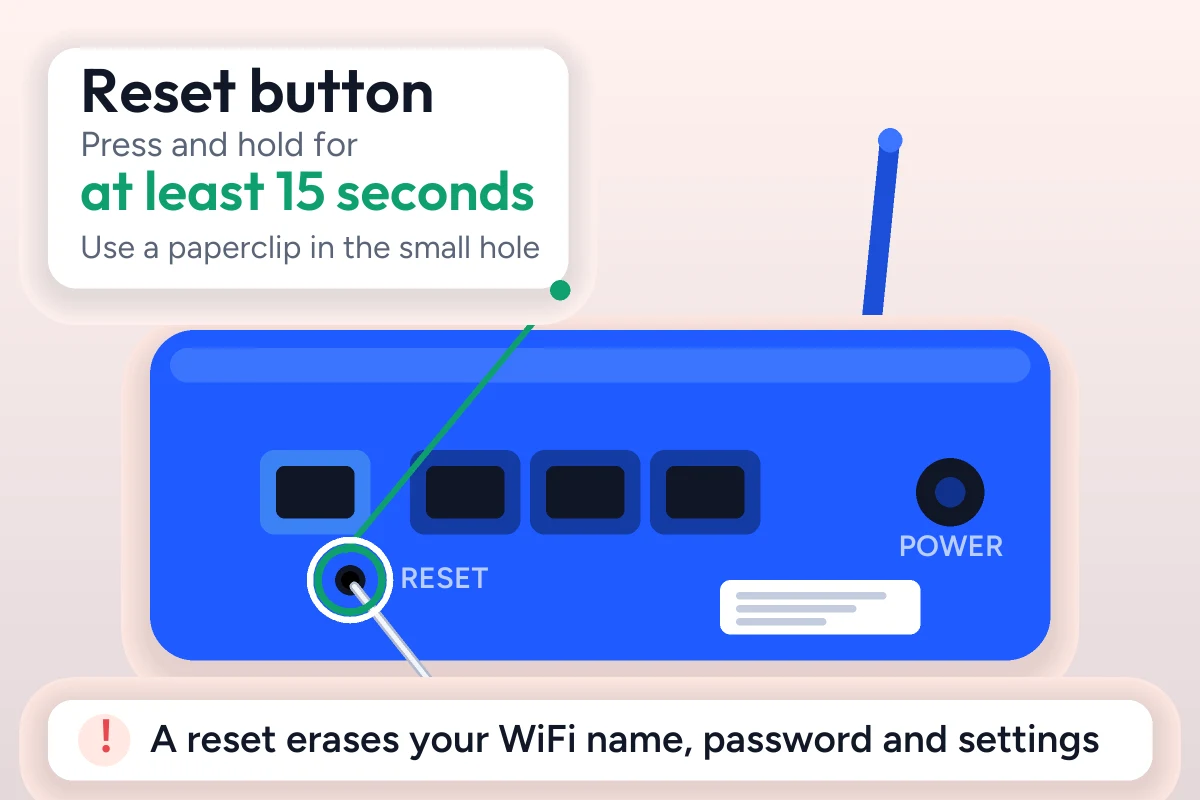
If you’ve forgotten your router default credentials, the last option to access the admin panel again is to set your router to its factory settings. It will reset your router and set the settings to their original to reset, simply press and hold the reset button located on the bottom back of the router for at least 15 seconds, then release when the LED lights start blinking. Wait for a few minutes to set your router completely. After that, you need to customize your router settings again.
Which Router Brands Use 192.168.1.1?
Many companies and brands manufacture routers that use 192.168.1.1 as the default gateway to their router and admin panel because this IP is a private address and allows users to access the router admin panel securely and manage wifi settings.
Before accessing the admin panel, make sure to check your router default credentials and IP for instructions; check the router label. Some routers may use different IP addresses depending on the model, such as 192.168.0.1, 192.168.254.254, or 10.0.0.1, so always verify the credentials.
Common 192.168.1.1 Login Problems and How to Fix Them
Verify default IP
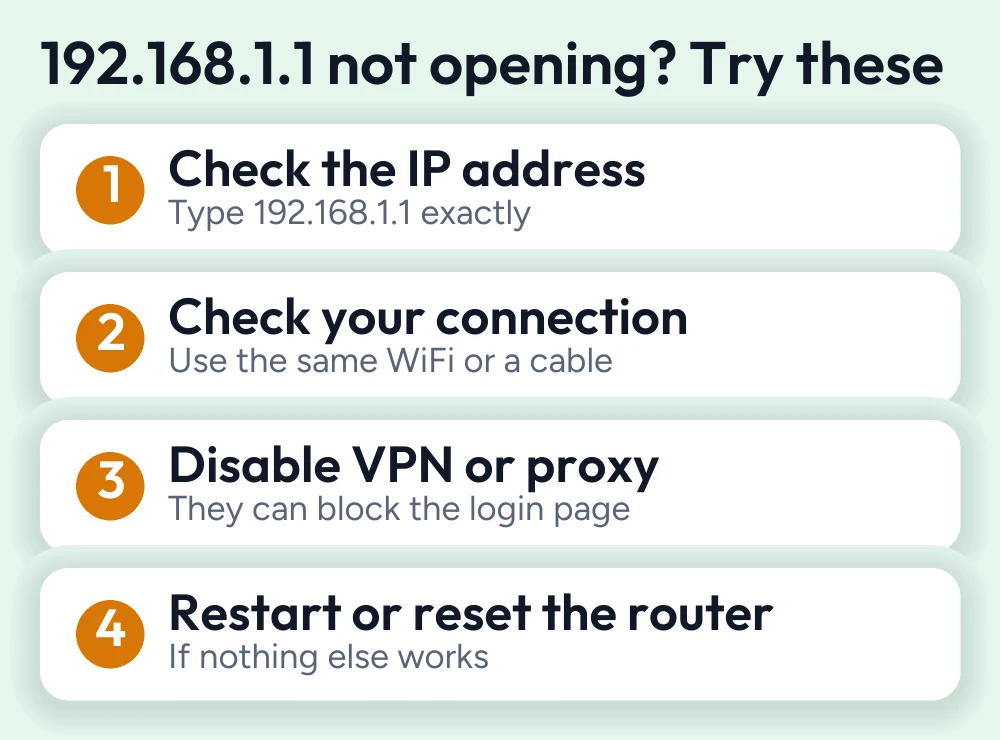
If you’re unable to access the admin login page, verify that you enter the correct login IP 192.168.1.1 in the address bar.
Incorrect credentials
Before accessing the admin login page, check the router label for the default username and password; sometimes the login page does not accept login credentials. Try the default one, or if you have forgotten your password, then resetting your router is the only way left
Clear browser cache
Sometimes users face server issues where the admin login page takes time to load before entering the IP; clear the browser cache, then try again.
No internet connection
Ensure your device is connected to the router. If the problem remains, then restart both your router and your devices and check that all cables are plugged in successfully
Conclusion
The 192.168.1.1 IP address is one of the most commonly used addresses, which helps you secure your home and offices’ WiFi networks and allows users to acces admin panel easily, whether you want to create a guest network, update firmware change the password, or change the SSID name or manage connected devices, you’ll make these changes by logging in to the admin panel if you’ve recently bought a router that uses this IP as its default. After reading and understanding this guide, you’ll be able to manage and set up your router easily.
Related router guides
- 192.168.0.1 login guide
- 192.168.254.254 login guide
- Netgear router login guide
- Linksys router login guide
- ASUS router login guide
- Cisco router login guide
Running a coin WiFi vending machine? Read the Piso WiFi 10.0.0.1 admin login guide and the Piso WiFi pause time guide, or go back to the Piso WiFi and router login guides hub.


