
Huawei Router Login Guide

Millions of users trust Huawei routers for delivering fast, stable, and secure network connections. Whether you want to access router settings, customize the WiFi name, update firmware, or manage devices, the router provides overall control to its users. Huawei routers come in different models and offer several advanced features. Users can log in to its admin panel using the default IP and credentials in this guide. You’ll understand why many users prefer Huawei routers and also learn their features, default IP, useful tips, and how to reset and log in to a Huawei router in a simple and beginner-friendly way.
What Is a Huawei Router?
A Huawei router is one of the most popular wireless networking devices that connects your home’s and office’s multiple devices to the same connection and allows them to communicate with each other. It is known for its reliable and secure performance.
Whether you need to customize WiFi settings, change the name, username, or password; update firmware; manage connected devices, or configure network settings, you can simply manage these things by logging in to its admin panel using its default IP 192.168.3.1 and default credentials. Huawei routers come with different models that offer advanced features such as dual-band WiFi, guest networking, parental controls, and enhanced security.
Huawei Router Default IP Address, Username, and Password
| Default IP | Default username | Default password |
|---|---|---|
| 192.168.3.1/192.168.8.1 | admin | admin/blank |
| 192.168.1.1/192.168.100.1 | admin | admin/blank |
Popular Huawei Router Models
A Huawei router is one of the most popular networking devices, and it comes with different models with different features. Here are some of the most popular Huawei router models.
- Huawei AX3
- Huawei AX2
- Huawei WS5200
- Huawei HG8145V5
- Huawei HG8245H
- Huawei HG8247H
- Huawei EchoLife Series
- Huawei B315
- Huawei B311
- Huawei B535
- Huawei B618
- Huawei 4G CPE
- Huawei 5G CPE Pro
How to Log in to a Huawei Router
Logging in to your Huawei router admin panel is easy and takes only a few minutes, but before logging in, make sure that your device is connected to the router network through a Wi-Fi connection or using an Ethernet cable; if your device is not connected, you’ll not be able to access the admin panel.
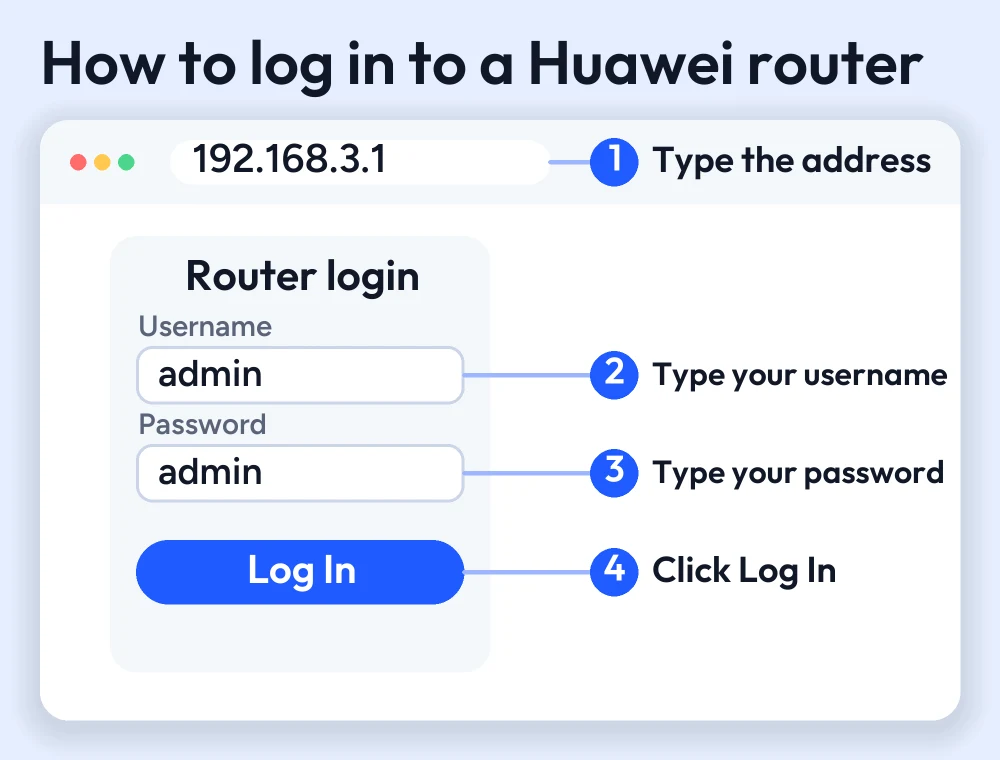
- Open any web browser such as Edge, Safari, or Google Chrome
- Enter the router’s default IP, 192.168.3.1, in the address field
- Press Enter, and a login page appears on your screen
- Enter default credentials
- Tap on login; now you’ll be able to access the admin dashboard and be able to manage Wi-Fi settings, change the network name and password, update firmware, configure network settings, and control other router features.
Features Available After Huawei Router Login
Millions of users use Huawei routers because they provide secure and advanced networking services. Huawei routers offer modern advanced features to their users. Once you access its admin portal, you’ll be able to access these features. Here are Huawei’s most popular features.
- Change the WiFi name and password SSID
- View connected devices
- Update firmware
- Configure network settings
- Manage parental controls
- Create a guest Wi-Fi network
- Setup port forwarding
- Manage MAC address filtering
- Configure LAN and WAN settings
- Block unknown devices
How to Reset a Huawei Router
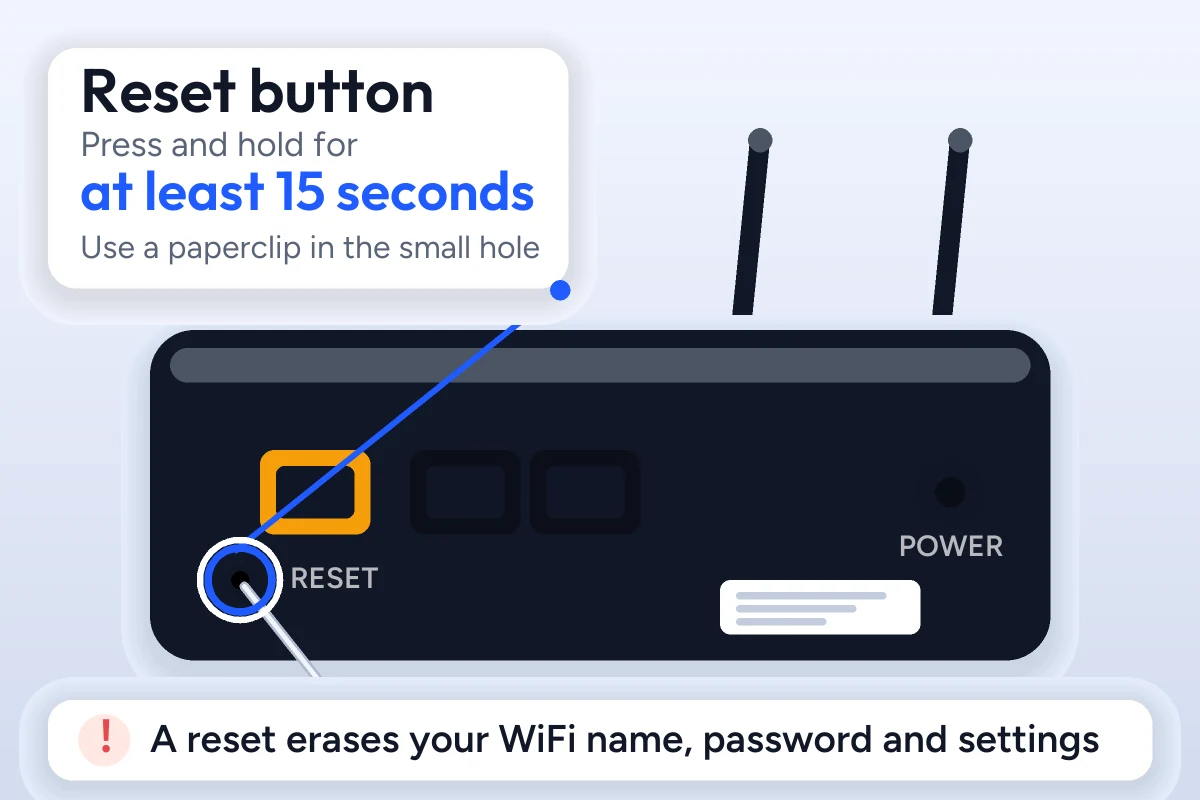
Resetting your Huawei router is easy and can be done in a few minutes. If you recently changed your login credentials and forgot the password, you can reset your router, but ensure that after resetting your router all your customized settings will be erased and your router will be set to its original settings. To set your router to its factory settings, press and hold the reset button located on the back bottom of the router for at least 15 seconds until LED lights start blinking, then release the button and wait for a few minutes to set your router.
How to Change the Huawei WiFi Password
- Log in to the Huawei router admin panel using default credentials
- In the dashboard, go to Wi-Fi settings or wireless settings
- Select your wifi network (2.4 GHz or 5 GHz)
- Enter a new strong password in the Wi-Fi password field
- Click on save changes
- Reconnect all your devices using the new password
How to Change the Huawei WiFi Name (SSID)
- Log in to the Huawei router dashboard
- Open wifi settings or wireless settings
- Find the Wi-Fi name SSID field
- Enter your preferred wifi network name
- Click “save” or “apply” to update the settings
- Reconnect your devices to the newly renamed Wi-Fi network if needed
Common Huawei Router Login Errors
Incorrect IP Address
Sometimes users enter the wrong IP in the address bar, so before entering the default IP, make sure to double-check your IP number and also check your router label or better instructions
Login Page Not Loading
This can happen due to a bad network. If your login page is not loading, check your default credentials, and before entering the login IP, clear your browser cache.
Router Not Responding
If your router keeps rebooting, the router may need to be restarted if it becomes unresponsive.
Forgotten Admin Password
If you’ve forgotten your router admin password, then resetting your router is the only option. Press and hold the reset button for 15 seconds, then release and wait for a few minutes.
Huawei Router Security Tips
- Update your default credentials, such as the login password, after setting up the router
- Use a strong and secure wifi password
- Configure network security settings
- Enable WPA2 or WPA3 encryption for better security
- Regularly check connected devices
- Disable WPS if you don’t use it to reduce security risks
Conclusion
A Huawei router is a networking device that allows multiple devices to share the same network. All routers have their own IP address that is the gateway to your router admin panel. The panel makes it easy to control Wi-Fi settings. Whether you need to change the name or password, manage data usage, or configure network security settings, you can easily customize these settings through the admin panel using the Huawei router default IP and credentials. Many users prefer this router because it provides advanced features with a reliable connection. If you recently bought a Huawei device, then following this guide can help you to easily set up the router.
FAQs
Why is the Huawei router login page not opening?
The login page may not open if you enter an invalid IP or credentials, or your device is not connected to the router network. Before accessing the admin panel, make sure to clear the browser cache.
Is it safe to reset a Huawei router?
Yes, resetting your router is a safe option. Keep in mind that it will erase all your customized network settings and set the router to its original settings.
How often should I update Huawei router firmware?
It's good to check firmware updates every few months or whenever Huawei launches a new version because updated firmware helps to improve security and stability.
How do I configure a Huawei router?
Log in to the router admin panel using the default IP, customize network settings, and change the Wi-Fi name and password, then reconnect all your devices.
More router login guides
- ZTE router login guide
- Xiaomi router login guide
- TP-Link router login guide
- Comtrend router login guide
- 192.168.8.1 login guide
Running a coin WiFi vending machine? Read the Piso WiFi 10.0.0.1 admin login guide and the Piso WiFi pause time guide, or go back to the Piso WiFi and router login guides hub.


