
Xiaomi Router Login Guide

The Xiaomi router is one of the most popular networking devices, known for its fast and reliable service. It provides a beginner-friendly web interface. Whether you need to change the WiFi name or password or manage connected devices, the router gives full control over WiFi settings. Learning how to customize Xiaomi router settings can save time and frustration.
In this guide we cover all topics related to Xiaomi routers, whether you want to change the WiFi name (SSID), configure network settings, reset your router to its factory settings, or want to access its admin panel. By going through this guide, you’ll be able to set up these settings easily, access the router admin panel securely, and keep your internet connection running smoothly.
What is Xiaomi Router Login?
Xiaomi router login is the process of accessing the router admin panel where you can control or customize all the WiFi settings, whether you want to update the login password, change the name, username, or WiFi name, manage connected devices, set up parental controls, update firmware, or configure security settings by logging in to the router admin panel using its default IP, 192.168.31.1, in your web browser.
The router admin panel allows you to manage network settings and fix troubleshooting issues. Once you’re logged in, you’ll have full access to your router settings and can make changes whenever needed.
Xiaomi Router Default Login Information
| Default credentials | details |
|---|---|
| Default IP | 192.168.31.1 |
| password | Admin password created during setup |
| Default login URL | http://miwifi.com |
Xiaomi allows users to create a default password and username during setup that will help you when you’re about to log in to the router admin panel.
How to Log in to a Xiaomi Router
Logging in to your Xiaomi router admin panel is easy. Before logging into the admin panel, ensure that your device is connected to the router network through a WiFi connection or using an Ethernet cable. If your device is not connected, then you’ll not be able to access the admin panel.
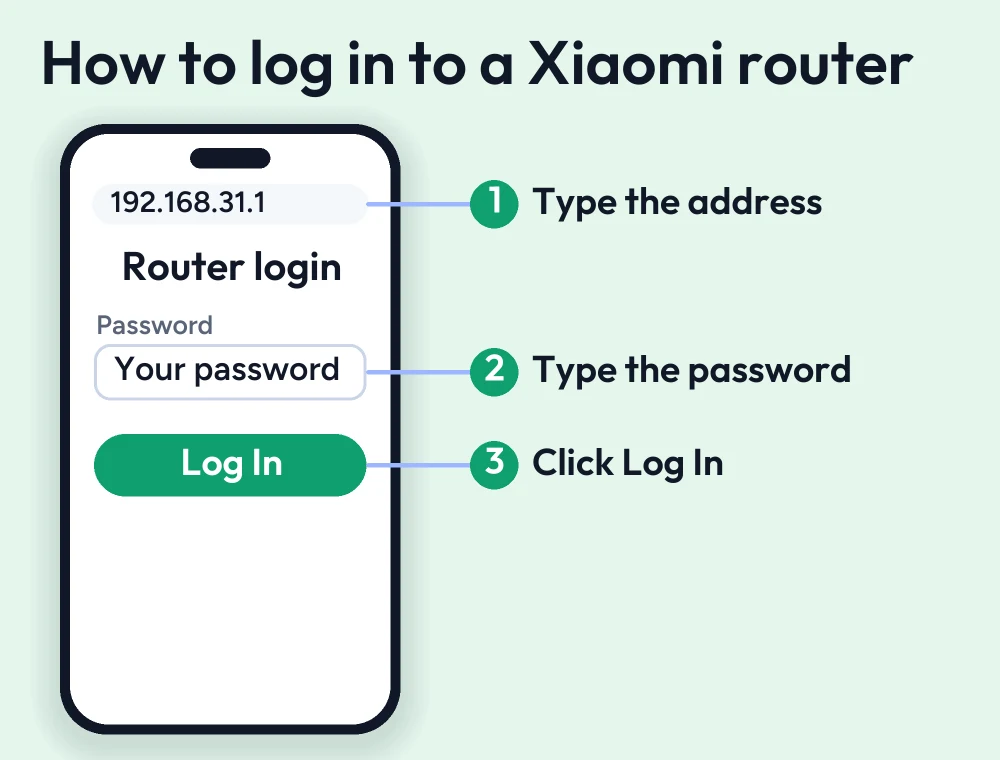
- Open any web browser such as Safari, Edge, or Google Chrome
- Type the default router IP 192.168.31.1 in the address bar
- The log-in page appears on your screen. Enter the default credentials or the password you created during setup
- Tap Enter to access the admin dashboard, where you can customize router settings, change Wi-Fi credentials, and set up parental controls.
Features Available After Xiaomi Router Login
Here are some Xiaomi router features you can access after successfully logging in to the router admin panel.
- Change the WiFi name SSID
- Manage connected devices
- Update firmware
- Manage guest wifi
- Reboot and restart the wifi
- Change login credentials
- Configure network settings
- Manage DHCP settings
- Configure port forwarding
- Set bandwidth limit QoS
- Backup and restore router settings
- Manage data usage
- Enable MAC address filtering
How to Reset a Xiaomi Router
If you have forgotten your login password or your router keeps rebooting, the only way is to reset the router. Make sure your device is connected to the router network, then press and hold the reset button located on the router’s back bottom for at least 10-15 seconds and then release when the LED lights start blinking. Wait for a few minutes to set your router to its factory settings. It will erase all your router settings, and you need to set up your wifi network again after the reset.

Reset from the Xiaomi Router Admin Panel
- Open a web browser and log in to the admin panel
- In the admin dashboard, navigate to settings or system settings
- Open the factory reset or reset router option
- Click reset and confirm your choice when prompted
- Wait a few minutes while the router restarts
- Once the reset is complete, set up your Xiaomi router.
How to Change the Xiaomi WiFi Password
- Log in to your Xiaomi router admin panel
- In the dashboard, go to Wi-Fi settings
- Find the password field
- Enter a strong password using a mix of numbers
- Click save or apply to confirm the changes
- Reconnect all your devices using the new password
How to Change the Xiaomi WiFi Name (SSID)
- Log in to your Xiaomi router admin panel using credentials
- In the dashboard got to Wi-Fi settings
- Locate the WIFI name (SSID) specified
- Enter a new strong network name
- Click on save changes
- Your WiFi network will appear with the new name, and you need to reconnect all your devices.
Popular Xiaomi Router Models
- Xiaomi Router AX9000
- Xiaomi Router AX6000
- Xiaomi Router AX3600
- Xiaomi Router AX3000
- Xiaomi Router AX3200
- Xiaomi Router AX1800
- Xiaomi Router AX1500
- Xiaomi Router AC2100
- Xiaomi Router 4A Gigabit Edition
- Xiaomi Router 4C
- Xiaomi Mi Router 4
- Xiaomi Mi Router 3G
- Xiaomi Mi Router 3
- Xiaomi Mesh System AX3000
- Xiaomi Mesh System AX3000 NE
Common Xiaomi Router Login Errors
If you’re unable to access the router admin page, don’t worry; most login issues are easy to fix. Here are some issues and their fixes.
Verify the Xiaomi Router Login IP Address
If you’re unable to log in to your admin page, check your default IP to whether it’s correct or not. If the issue is still the same, then try the alternative IP 192.168.1.1, depending on your router model.
Check Your Network Connection
Before logging in to the admin page, make sure to check that your device is connected to the router network. If your device is not connected, then you’ll not be able to access the admin panel.
Restart the router
If your router keeps rebooting, turn off the Xiaomi router and unplug it from the power source. Wait for 30 seconds, plug it back in, and ensure you connect all the power cables securely. Once the internet light is stable, try logging in again.
Disable VPN or Proxy
Turn off your VPN or proxy service running on your device; these services can sometimes prevent access to the login page.
Reset the router.
If you still can’t access the router admin panel, then resetting your router to its factory setup can help you log in to your admin panel easily.
Xiaomi Router Security Tips
- Change the default name and password, and set a strong password
- Enable WPA2 or WPA3 encryption for better security
- Keep your router firmware updated; it will secure your router more efficiently
- Disable remote management if you don’t need to access your router from outside the home
- Restart your router occasionally to keep it running smoothly
Conclusion
A Xiaomi router is a wireless networking device that allows multiple devices in your home and office to share the same network. Whether you need to customize the network name, change the password, enable VPN, configure network settings, or control parental setup, Xiaomi allows you to control these settings by logging in to its admin panel using the default IP. If you face troubleshooting errors or have forgotten your password, resetting your router can help you to solve these issues. If you recently bought a Xiaomi router or want to set it up, then following this guide can help you to set up the device properly.
FAQs
Can I change my Xiaomi WiFi password?
Yes, you can change your Xiaomi router password anytime by logging into the router admin panel. After saving the new password, reconnect all your devices using the updated credentials.
Is it safe to reset a Xiaomi router?
Yes, resetting your router is safe, but keep that thing in mind: resetting your router can erase all your router's customized settings, and after that, you'll need to set up the router again.
How often should I update the Xiaomi router firmware?
You can check your router firmware update monthly or whenever Xiaomi releases a new version. Update firmware to improve router security, fix bugs, and keep your router safe.
More router login guides
Running a coin WiFi vending machine? Read the Piso WiFi 10.0.0.1 admin login guide and the Piso WiFi pause time guide, or go back to the Piso WiFi and router login guides hub.


